 Stickify
Support
Answers to the common questions, and how to reach a real person.
Contact
Questions, bugs or ideas? Email Rai, who makes Stickify:
It helps to include your iPhone model, iOS version and Stickify version (Stickify › Settings › Version).
Where do my stickers show up?
In the iPhone’s sticker drawer. Open any chat, tap the emoji key on the keyboard, tap the stickers button, then choose Stickify in the row of sticker apps. Tap a sticker to send it. In Messages you can also tap + › Stickers, or drag a sticker onto a message bubble.
Stickers you make appear in the drawer straight away. You don’t need to update or reinstall anything.
Stickify isn’t in my sticker drawer
- Open Stickify and save at least one sticker.
- In Messages, tap + › Stickers. Scroll the row of sticker apps to the end, tap Edit, and make sure Stickify is in the list and turned on.
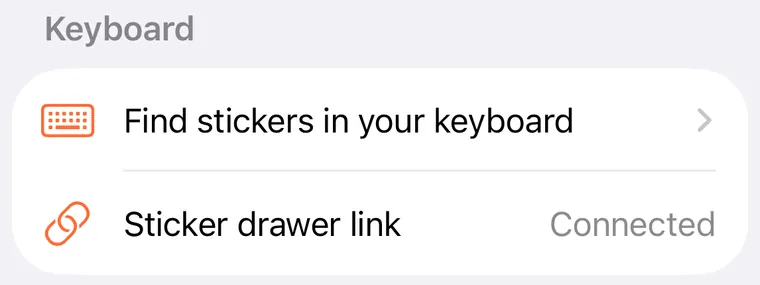
- In Stickify, open Settings › Keyboard. “Sticker drawer link” should say Connected. If it says Not connected, delete Stickify and install it again from the App Store so iOS sets up its shared storage. Deleting the app also deletes your stickers, so save any you want to keep to Photos first.
Which apps can I send stickers in?
Messages, WhatsApp, Messenger and other apps that support iOS stickers. Each app decides whether it shows the sticker drawer, so it can differ between apps and app versions.
If an app doesn’t show the drawer, open the sticker in Stickify, tap Copy, then paste it into the chat. You can also tap Share or Save to put it in Photos.
The cut-out didn’t work
If Stickify says “No clear subject found”, it couldn’t tell what to lift out. It works best with people, pets and objects that stand out from the background. Try a photo where the subject is larger, sharper or better lit, or tap Use the Whole Photo to make a sticker from the whole picture.
Stickify needs an iPhone with iOS 17 or later. The cut-out uses Apple’s subject lifting, which runs on the iPhone itself, so it doesn’t need an internet connection.
The cut-out missed a part, or kept too much
Open the sticker and tap Touch Up or Add Effects, then Touch Up. Use Erase to remove stray bits and Restore to bring back a missed hand or hat. The Edges slider tightens or loosens the outline.
Choosing who goes in the sticker
When a photo has several people, Stickify asks “Who’s in the sticker?”. Tap people in the photo, or in the row below it, to add or remove them, or choose Everyone.
The face is too small in my sticker
In the editor, choose Upper Body or Close-Up under the preview. Stickify finds the face and zooms in so it stays clear at sticker size.
What does the free plan include?
- 10 saved stickers. Each effect you save from a photo counts as its own sticker.
- The Original, Outline and Shadow effects, with their default colors.
- Importing up to 10 photos at a time (and no more than the free stickers you have left).
- The automatic cut-out, Touch Up, framing, mirroring and the sticker drawer.
Stickify Pro removes the limits and adds eight more effects and any border or glow color. See Free and Pro.
Restoring Pro on a new iPhone
Open Stickify › Settings › Restore Purchases while signed in with the same Apple Account you used to buy Pro. Stickify has no accounts of its own; Pro is tied to your Apple Account.
Managing or cancelling your subscription
Subscriptions are handled by Apple. On your iPhone, open the Settings app › your name › Subscriptions › Stickify, then tap Cancel Subscription. If you subscribe, Stickify’s own Settings also has a Manage Subscription button that opens the same screen.
Cancel at least 24 hours before the end of the current period to avoid being charged for the next one. You keep Pro until the end of the period you paid for. A lifetime unlock is a one-time purchase and never renews.
Apple’s instructions: Cancel a subscription from Apple.
Refunds
Payments go through Apple, so refunds do too. Rai can’t see or refund your payment. Apple explains how to ask: Request a refund for apps or content that you bought from Apple.
Deleting stickers and data
Open a sticker and tap Delete, or touch and hold it in your library and choose Delete. It disappears from your sticker drawer too. To remove everything, delete the app. The details are on Delete your data.
Reporting a bug
Email stickify@raiyanasaral.com with:
- What you did, what you expected, and what happened instead.
- Your iPhone model and iOS version (Settings › General › About).
- Your Stickify version (Stickify › Settings › Version).
- The app you were sending to, if the problem is with the sticker drawer.
- A screenshot or screen recording, if you can.
Only attach photos you’re happy to share. Stickify never sends your photos to anyone, so the only way Rai sees one is if you email it.